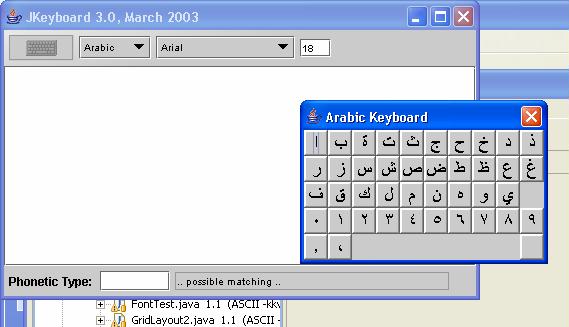
INSTALLING AND RUNNING JKEYBOARD PROJECT WITH ECLIPSE
I assume that Eclipse 3.1 is istalled and running in your system.
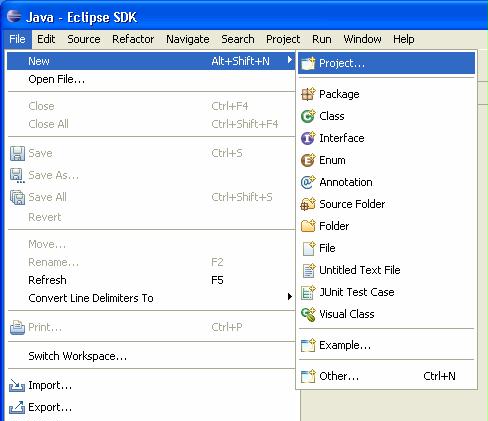
Select File -> New -> Project from main menu.
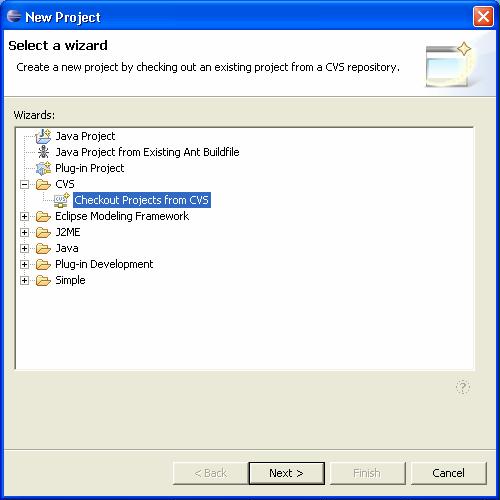
Select CVS -> “Checkout Projects from CVS” in the newly opened window, and press Next.
If you had used Eclipse previously in order to download any projects, you can use one of the existing “repository location”s.
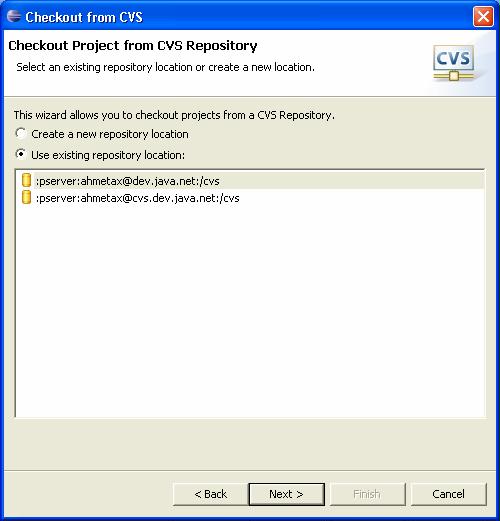
If it is the first time, then you must first select “Create a new repository location”.
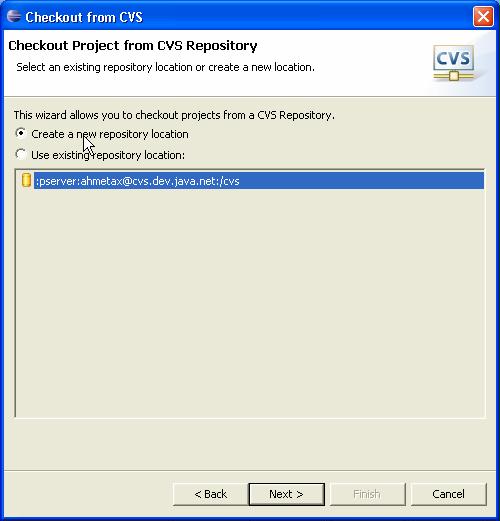
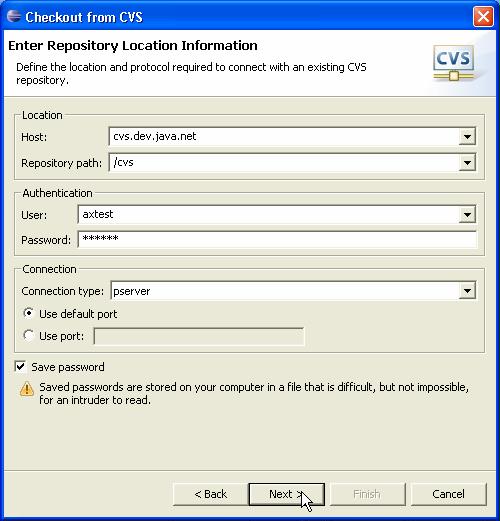
If you are already a dev.java.net member, you should use your username, and password for that membersip in the following page. Otherwise, you should become a registered user first. (In that case, connect to the address http://www.dev.java.net. Click "register" at the top right of the page. Fill in the required places, and press the "register" button in that page. A mail message will be sent to the email address given by you. It might take some time. In the message there will be all required steps to be done. After completing those steps, you will be a new member of dev.java.net.)
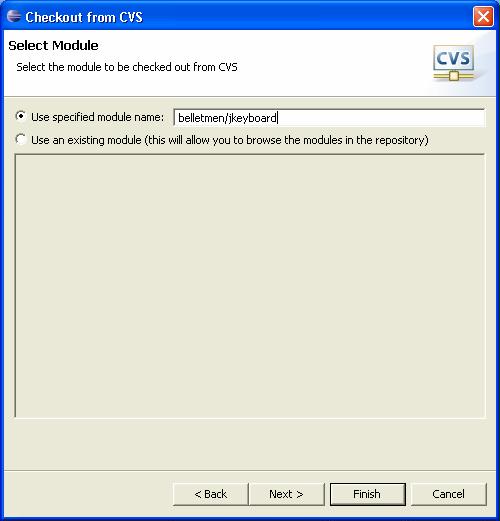
The jkeyboard module is located under belletmen. So, enter belletmen/jkeyboard .
Project name is jkeyboard.
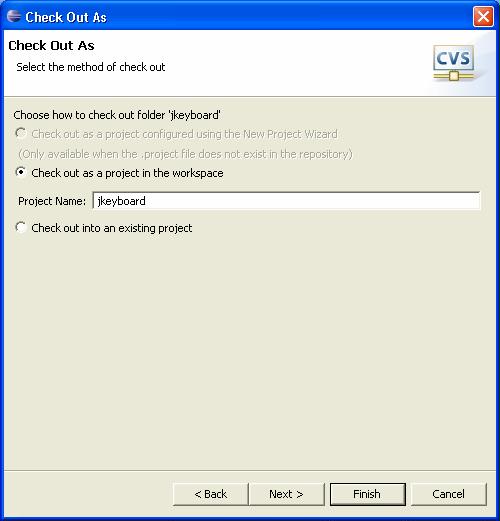
Use "Default workspace".
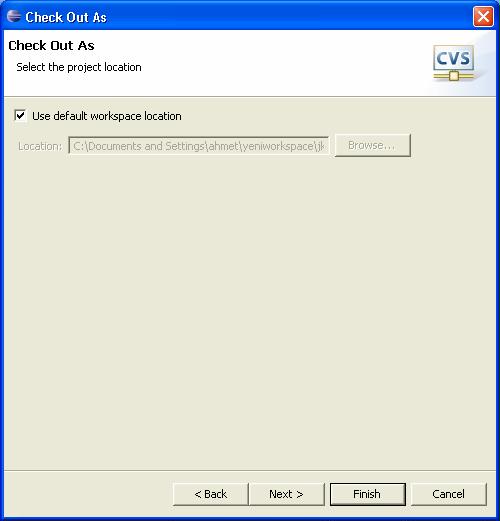
Continue, and then press "Finish".
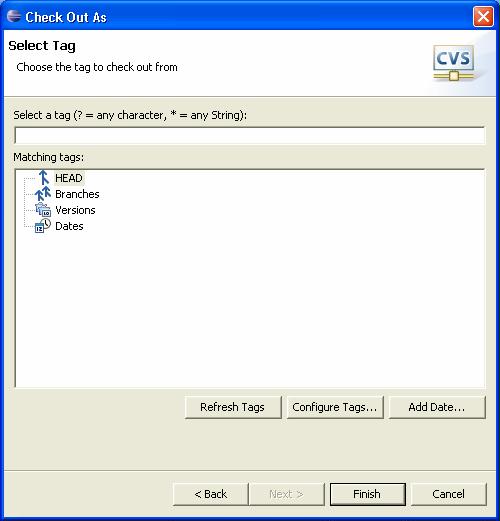
Wait for some time until download is completed.
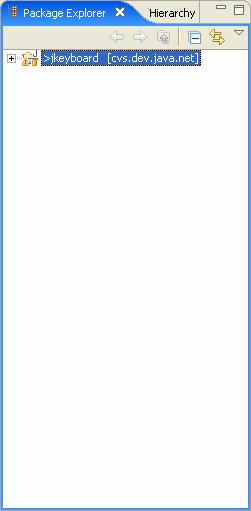
Now, let's open the project in order to run it. jkeyboard -> src -> Unicode
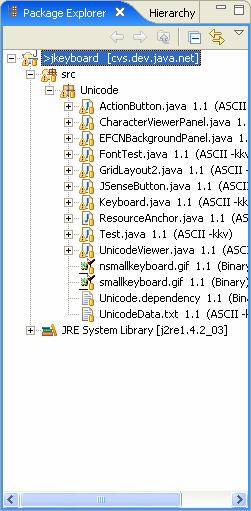
Keyboard.java contains a main method. That means we can run it. While mouse is pointing towards Keyboard.java, press right mouse button. First select "Run As" from the new pop-up menu, and then select "Java Application".
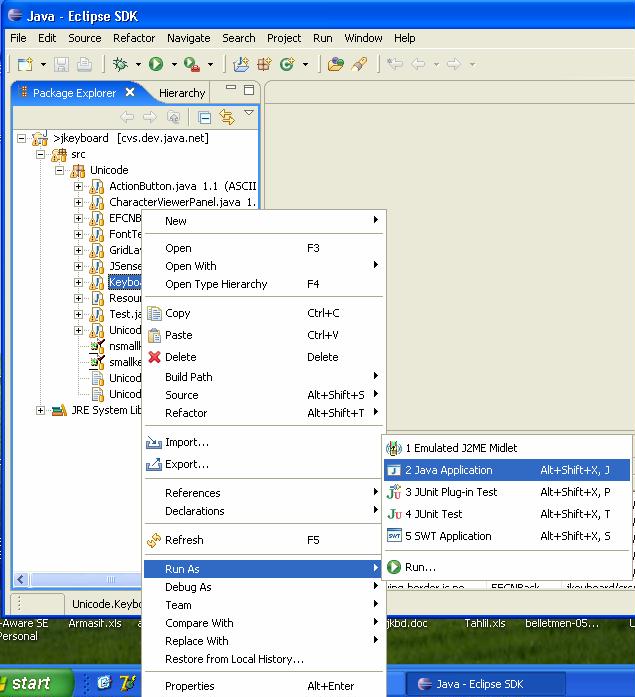
That's it!.. Arabic is the first item in our selection list.